Welcome to the Dayworth AI beta
Dayworth AI tells a field sales rep who to visit today, plans the drive, and keeps the notes, follow-ups and mileage. Thank you for testing it.
Not invited yet? Request access
The deal
What we ask of you
- Two weeks of real use on your own accounts.
- Plan at least three real days with Plan my day, and drive them.
- Log your visits as you go, so follow-ups have something to work from.
- Tap the speech bubble the moment anything is confusing, slow or wrong. One sentence is plenty.
- A 15-minute call at the end: what you used, what you skipped, and what would make you keep it.
What you get
- Free for the whole beta, plus your first month free after launch.
- A direct line to the team that builds it. A person reads every message.
- Your requests built first. What testers ask for decides what we work on next.
- Every new feature early, before anyone else sees it.
- Bring a colleague: for each rep you refer who completes the two weeks, you get another free month.
Request access
We are adding outside sales reps who work a book of accounts. Tell us a little about you and we will email you, usually within a few days.
Getting started
- iPhone: install TestFlight from the App Store, then open the invitation email from Apple and tap View in TestFlight. The Apple Watch app installs with it.
Computer, iPad or Android: go to dayworth.ai. - Sign in with the email address we invited. If you use Sign in with Apple, choose Share My Email, so we can match you to your invitation.
- Add your accounts: import a spreadsheet (Excel or CSV) or paste rows from one. Name and address are enough to start.
- Tap Plan my day. Say yes to location when asked: it is what makes directions and visit check-ins work.
- Follow the Get started card on Home. It is a short checklist of lessons on each feature. Each step ticks itself when you do it, and Show me takes you to the real button. Hide it whenever you like.
- Tell us what you think. Tap the speech-bubble button and write one sentence. It sends us the screen you were on and any recent error, which is the most useful thing a tester can do.
What it does
Plan the day
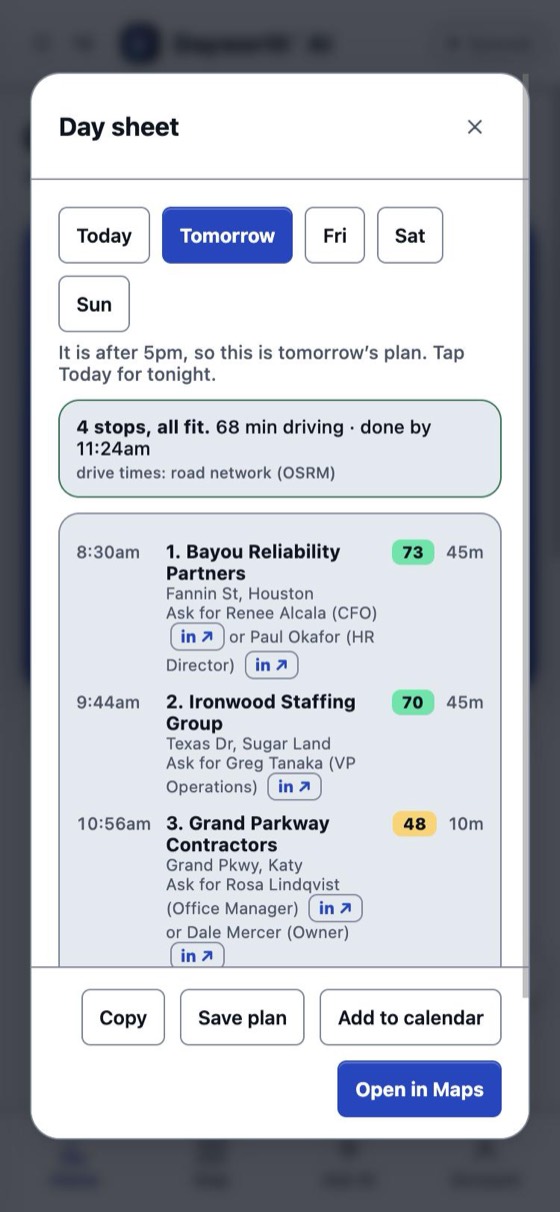
- Plan my day schedules the whole day: arrival times, who to ask for, and a warning when a stop will be closed.
- Every account is scored 0 to 100 each day: who is due, who is likely to buy, who is open now.
- Add the day to your calendar, or save it as a plan.
See it and drive it
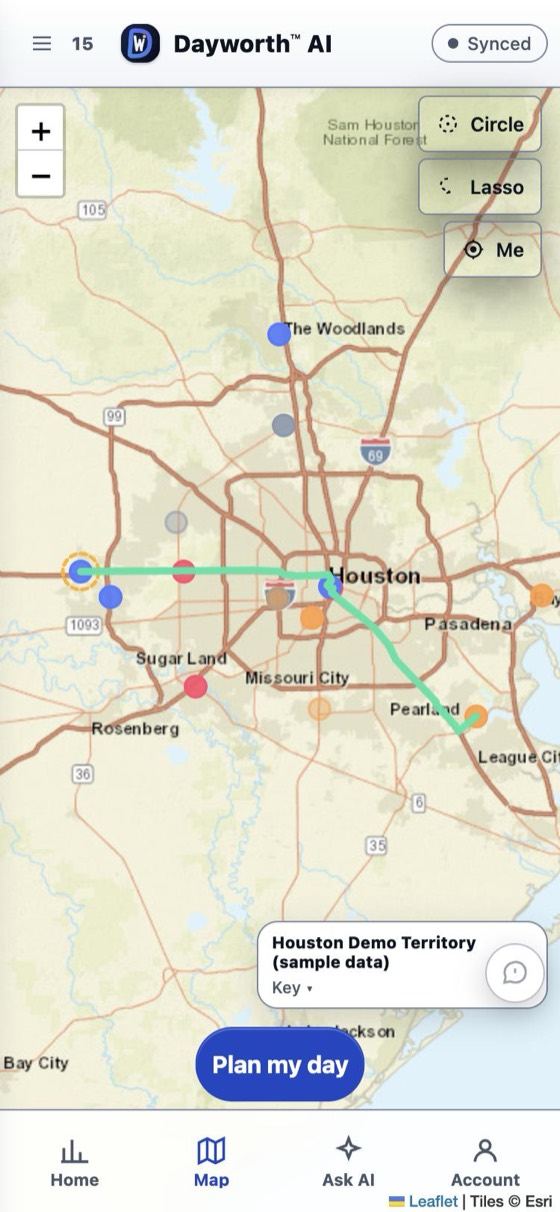
- Your accounts on a map, coloured by score.
- Build the route yourself if you like: tap pins, circle an area, or add everything shown.
- Stops go in the best driving order on real road times, with live traffic.
- Turn-by-turn directions inside the iPhone app, read out loud, or hand the route to Apple Maps, Google Maps or Waze.
- Send your stops to a Tesla.
Apple Watch new
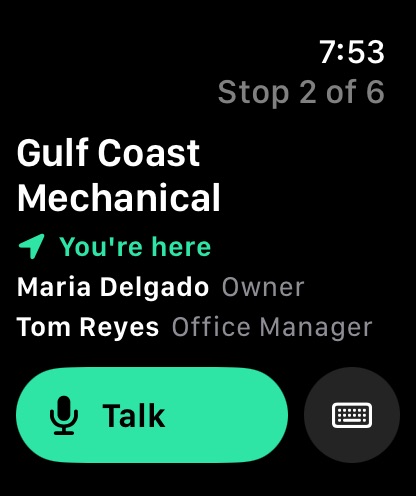
- When you arrive, your wrist shows where you are, which stop of the day it is, and who to ask for.
- Tap Talk and speak your visit note. It lands on the account in your phone.
- Installs with the iPhone app. Nothing extra to set up.
At the stop
- Log a visit: who you spoke with, a spoken note, the next step and its date.
- Follow-ups come back on Home when they are due, with Done and Snooze.
- Mileage that logs itself new: on iPhone, every drive is recorded, even with the app closed. Swipe it Business or Personal on the Miles tab, and email an itemized report with the spreadsheet attached.
Your book of business
- Import from Excel or CSV, or paste. Addresses are checked and placed on the map.
- AI lookup fills in a website, phone, industry and decision makers, each with its source. Nothing changes until you approve it.
- Ask AI anything about your accounts, or ask it to plan or update them.
- Find businesses near you to add as prospects.
- Salesforce sync for contacts and visits new
CarPlay new
- Your route and stops on the car's screen, from the iPhone app.
- Not yet tried in a real car by anyone. If you have CarPlay, you would be the first: please tell us how it goes.
Screenshots use the built-in sample accounts.
What it works with
| Device or service | How |
|---|---|
| iPhone | iOS 15 or later, through TestFlight. |
| Apple Watch | watchOS 9 or later, paired with that iPhone. Installs with the iPhone app. |
| CarPlay | Cars and stereos with CarPlay, from the iPhone app. |
| Computer | dayworth.ai in Chrome, Safari, Edge or Firefox, on Mac or Windows. |
| iPad and Android | dayworth.ai in the browser. There is no Android app yet. |
| Maps | Built-in directions on iPhone, or Apple Maps, Google Maps and Waze. Pick one in Account. |
| Tesla | Connect your car in Account to send it your stops. |
| Salesforce | Connect from dayworth.ai on a computer; it needs a Salesforce admin the first time. |
| Spreadsheets | Excel (.xlsx) and CSV, or rows pasted from either. |
| Calendar | Add a planned day to your iPhone calendar. |
Items marked new are working in our own testing and have not yet been used by many people. If you try one, tell us how it went.
Your data
Your account list is encrypted on your device before it is backed up, it is walled off from every other customer, and it is never sold or used to train AI. You can lock the iPhone app with Face ID and turn on two-step sign-in in Account. The Privacy Policy lists every service that touches your data and why.